Step 1 of 3
Upload to the AI Photo Enhancer
Drop a JPG, PNG, or WEBP file. Use portraits, products, screenshots, old photos, or any image that looks soft or grainy.
Get sharper edges, clearer faces, and richer texture. No heavy edits. Great for portraits, ads, and any photo that needs a quick boost.
Enhance Photo Quality Now

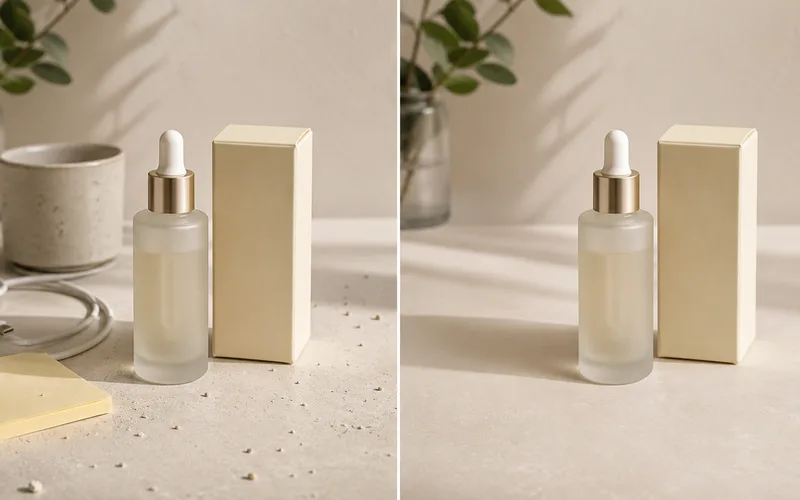
Fix noisy product shots, fuzzy phone pics, and compressed files. The AI cleans up grain while keeping things natural.
Enhance Photo Quality Now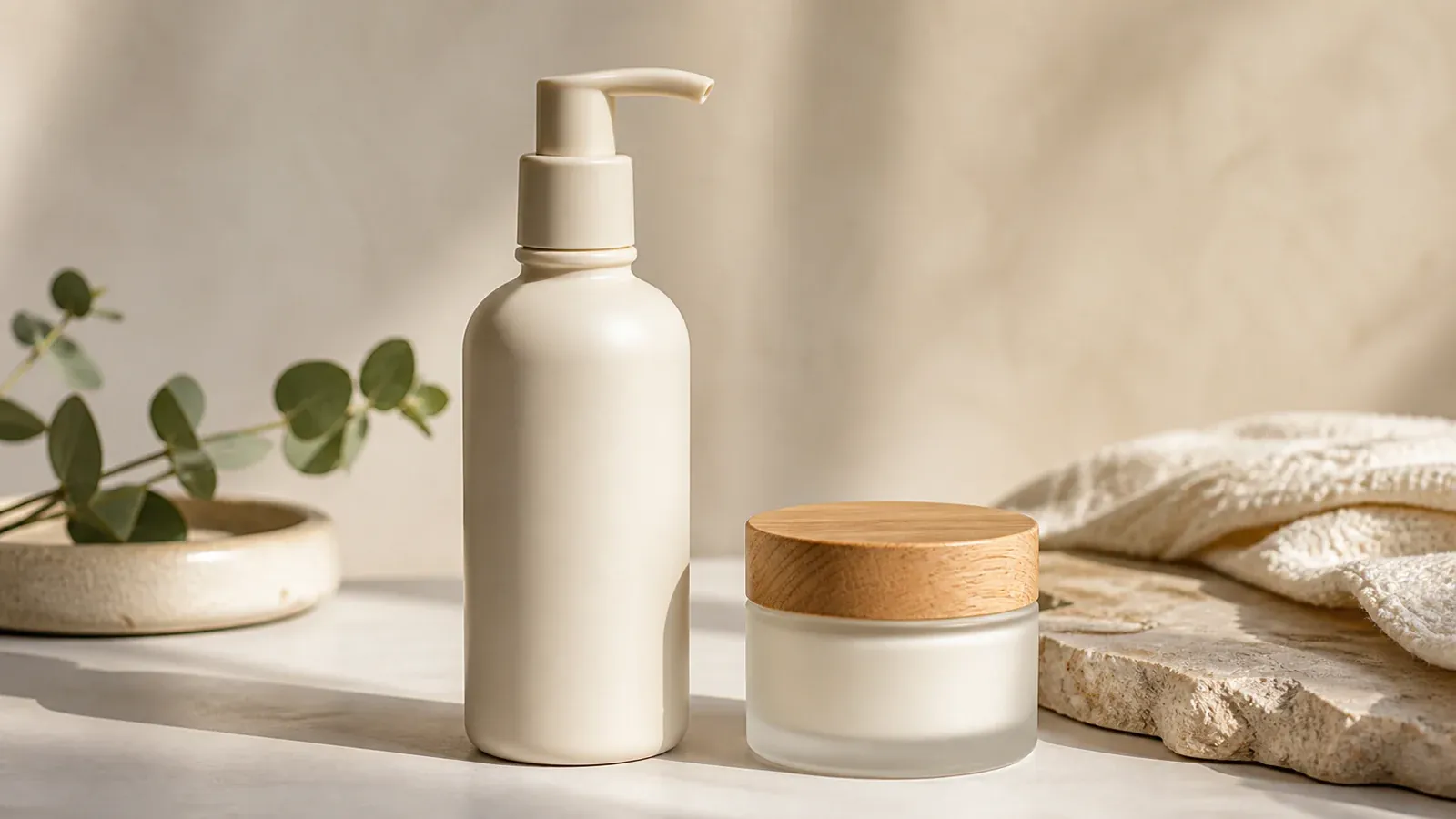
Brighten dark photos and fix dull colors. Skin tones and products look true to life. Perfect when a photo is close but needs a final touch.
Enhance Photo Quality Now

Make photos look sharper on big screens. Great for social posts, product pages, and profile pics. Old photos get a new life too.
Enhance Photo Quality Now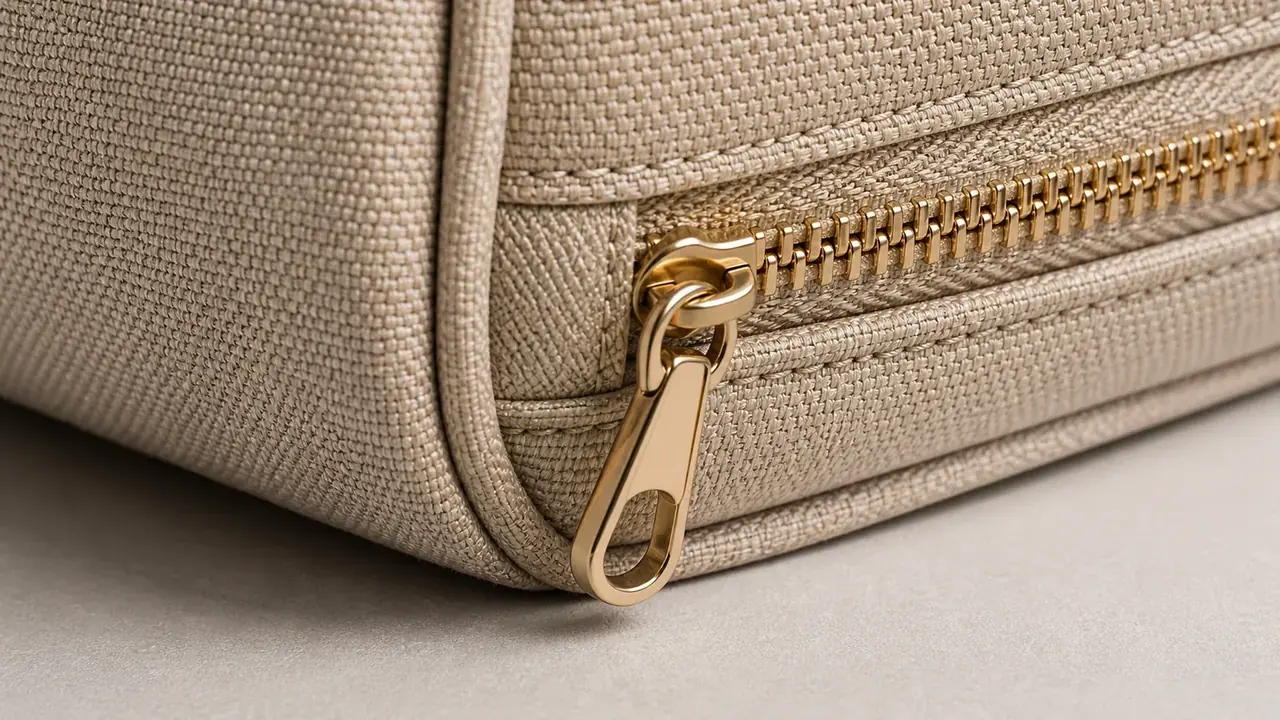
How to use
A simple way to get sharper photos: upload, enhance, compare, and save.
Step 1 of 3
Drop a JPG, PNG, or WEBP file. Use portraits, products, screenshots, old photos, or any image that looks soft or grainy.
Step 2 of 3
The AI sharpens details, fixes lighting, and cuts noise. Your photo stays real while it gets clearer.
Step 3 of 3
Check the before and after. Then save the better version for your listing, profile, or post.
Use cases
Each photo type needs a bit of different care. Portraits, products, old photos, and dark shots all get clearer in their own way.
Get sharper faces, better light, and real skin texture. Great for profile pics and headshots.
Cut blur and noise so product shapes and details pop on your store page.
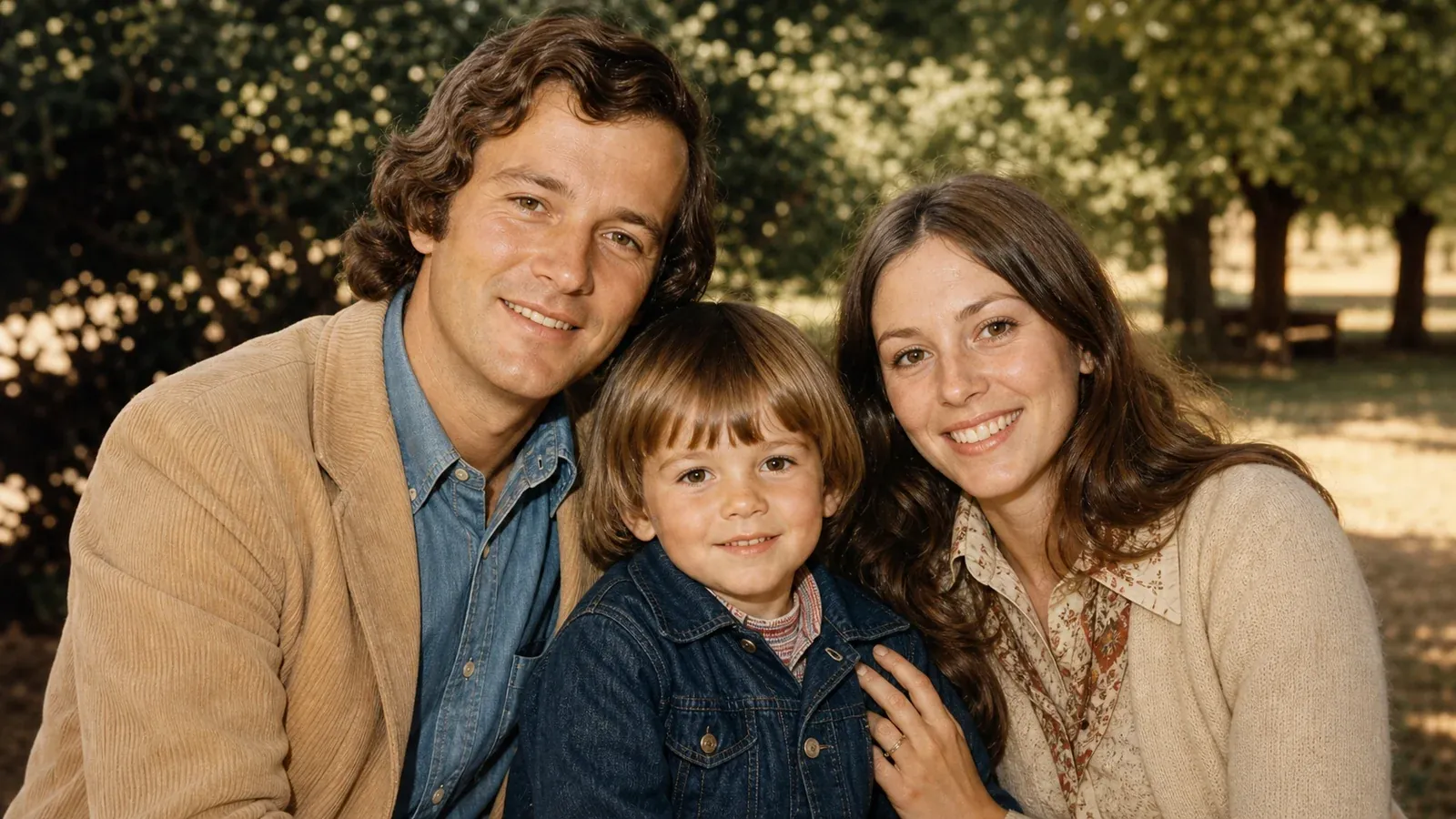
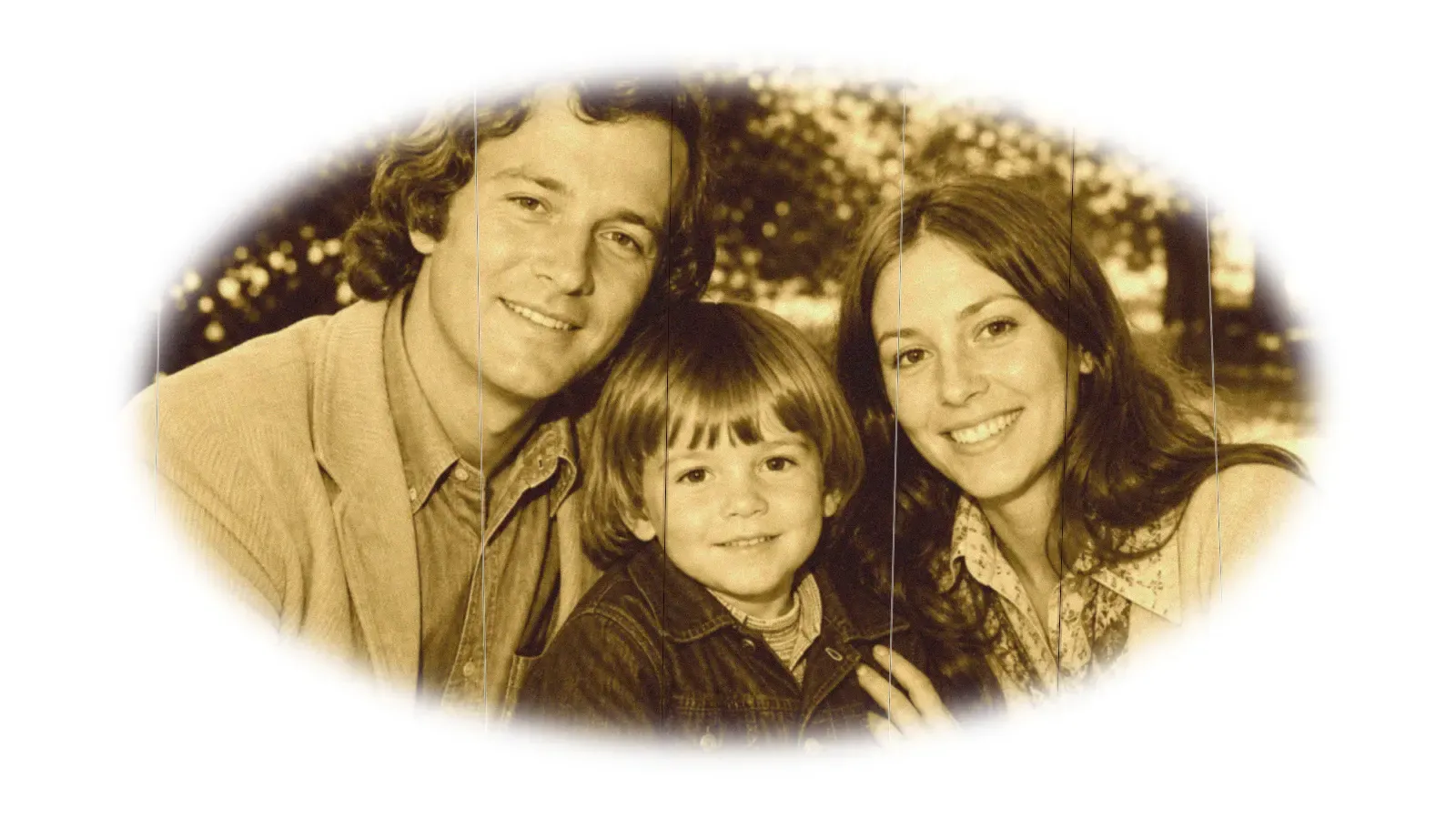
Bring back faded memories. Get better contrast, sharper edges, and a cleaner file.
Brighten dark shots while keeping them real. Works well for portraits and home photos.
Enhancement tools
Do the most common photo fixes: upscale, unblur, sharpen, restore, brighten, and get HD-ready images.
Increase photo resolution for sharper web and social assets.
Improve soft or compressed photos with cleaner visible detail.
Make edges, product texture, and portrait details easier to see.
Refresh old or faded images for a cleaner digital archive.
Fix dull photos with brighter tones and more balanced contrast.

Prepare enhanced images for modern screens and product pages.
Why choose it
You want real detail, clean quality, and a fast way to turn a bad photo into a good one.
Your portraits stay real. No plastic look or harsh edges. Just cleaner, sharper photos.
Cut blur, grain, and ugly compression. Your subject still looks like itself.
Fix portraits, products, screenshots, and old photos. All in one place online.
Upload, enhance, compare, and download. No app to install.
Make photos look their best before they go on a store page, profile, or deck.
Skip the complex tools. Just better photos, fast.
Reviews
The need is simple: clearer photos, natural look, less mess, and no complex tools.
I clean up product shots before posting. They look sharper but still real.
Maya Chen
Marketplace seller
The before and after view helps me decide if a portrait is ready to post.
Jordan Miller
Content creator
When a photo is almost there, this gets it ready for the landing page.
Priya Shah
Marketing designer
More tools
Move between the image jobs people usually pair together: editing, backgrounds, resizing, enhancement, and text overlays.
FAQ
Quick answers about fixing blur, boosting quality, and making photos look better online.
It makes photos look better. The AI sharpens details, cuts noise, fixes blur, and balances light. Use it for portraits, products, screenshots, or old photos that need a cleaner look.
Upload your image and let the AI work. Then check the before and after. For best results, start with the clearest photo you have.
Yes, it can help many soft or blurry photos. The AI brings back edge detail and cuts compression mess. Very blurry shots may still lose some info, but most photos get much clearer.
Yes. It makes surfaces, edges, and small details pop before your photo goes into a listing or ad. Keep the look natural so colors stay true.
Yes. It boosts clarity, contrast, and detail. Works best on scanned photos where you can still see the subject, even if the image is faded or soft.
You can use JPG, PNG, or WEBP files. Use the best version you have. A better source gives the AI more to work with.