Sharp Output
Get crisp resized photos with smooth scaling. Preview results before you download.
Resize images online for free. Set exact pixels or target KB, then download a clean JPG, PNG, or WebP.
Get crisp resized photos with smooth scaling. Preview results before you download.
The resizer runs in your browser without server delay, so most edits finish in seconds.
Upload an image, select the target size, choose your output format, and download the file.
Works on Mac, Windows, Linux, tablets, and phones without installing software.
Files stay on your device when possible. No upload needed for standard resize jobs.
Basic image resizing is free with no watermark on everyday jobs.
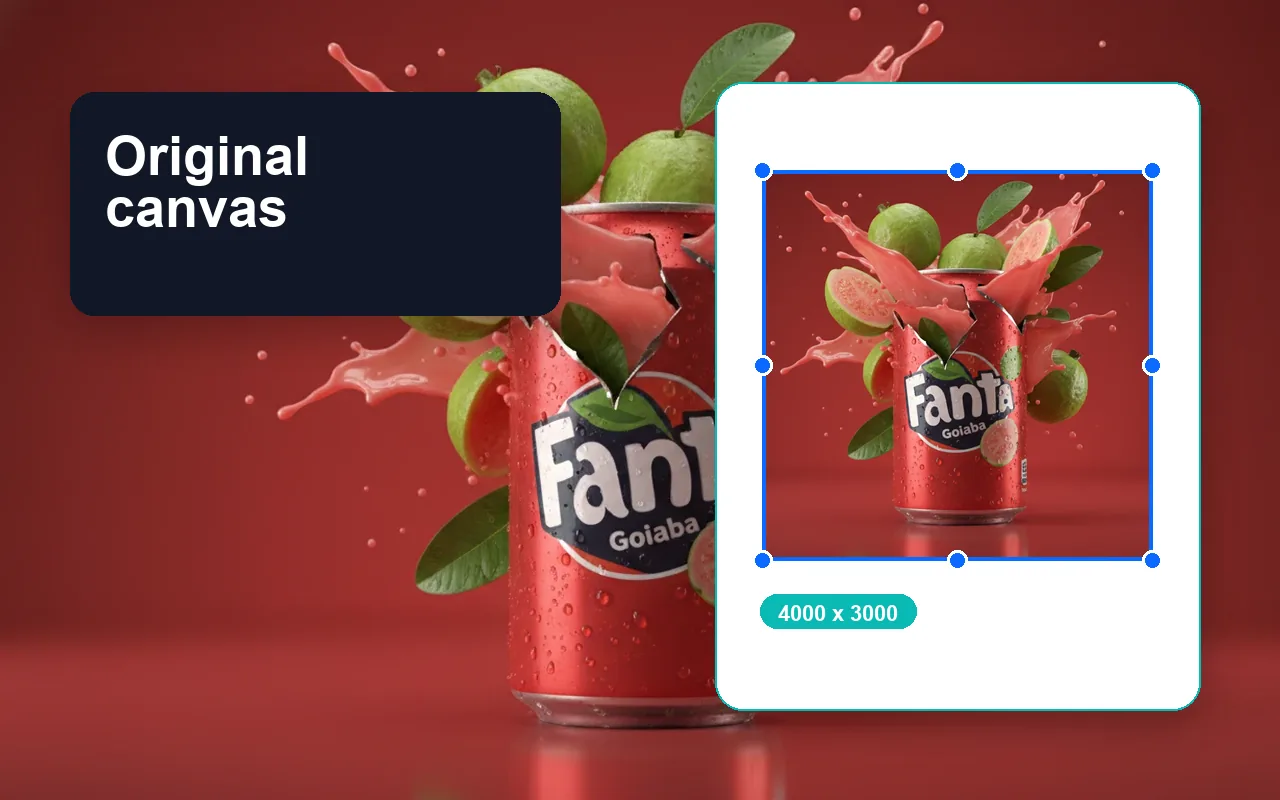
Enter exact width and height values for strict upload rules, or pick presets like 1080 x 1080, 16:9, or banner layouts.
Resize Image Now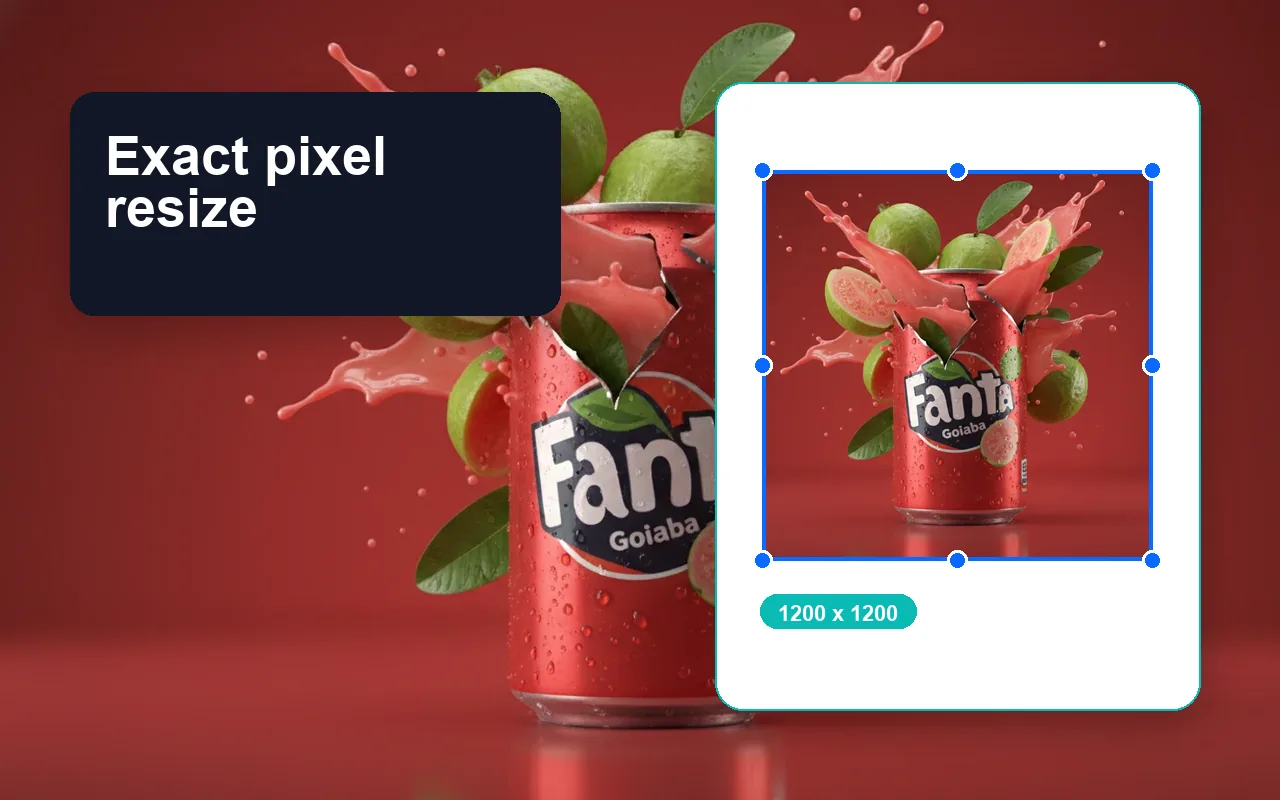
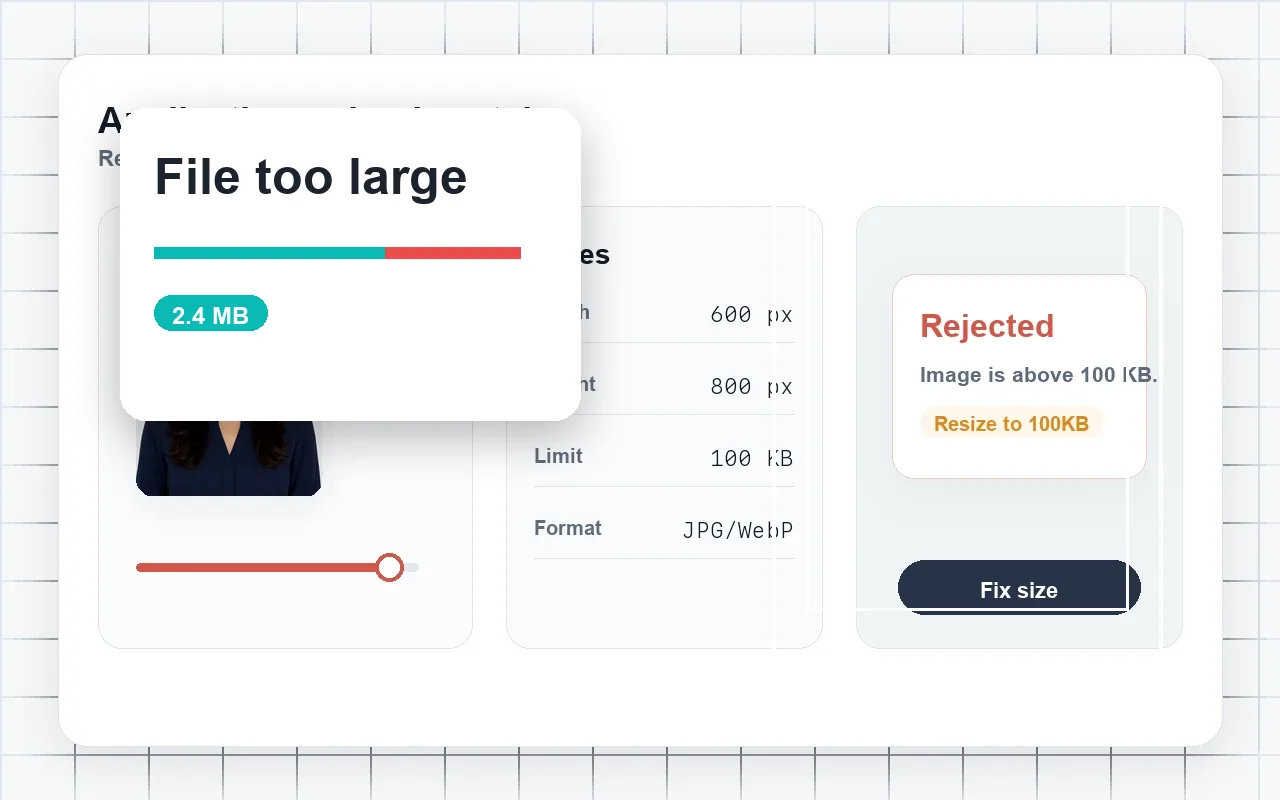
Forms and portals often require a file size limit. Target KB mode helps JPG and WebP files fit those rules easily.
Resize Image Now
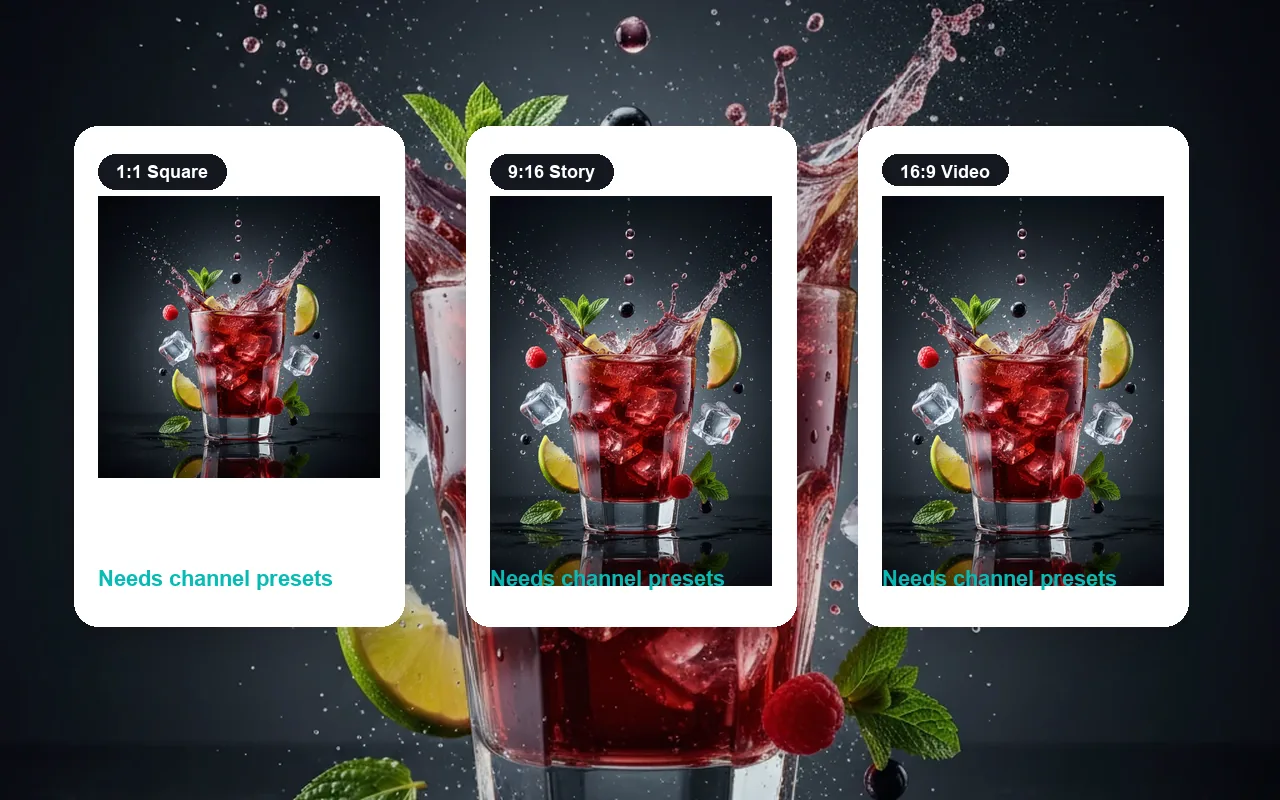
Turn one image into clean squares, banners, or portrait crops for Instagram, YouTube, Shopify, and Amazon.
Resize Image Now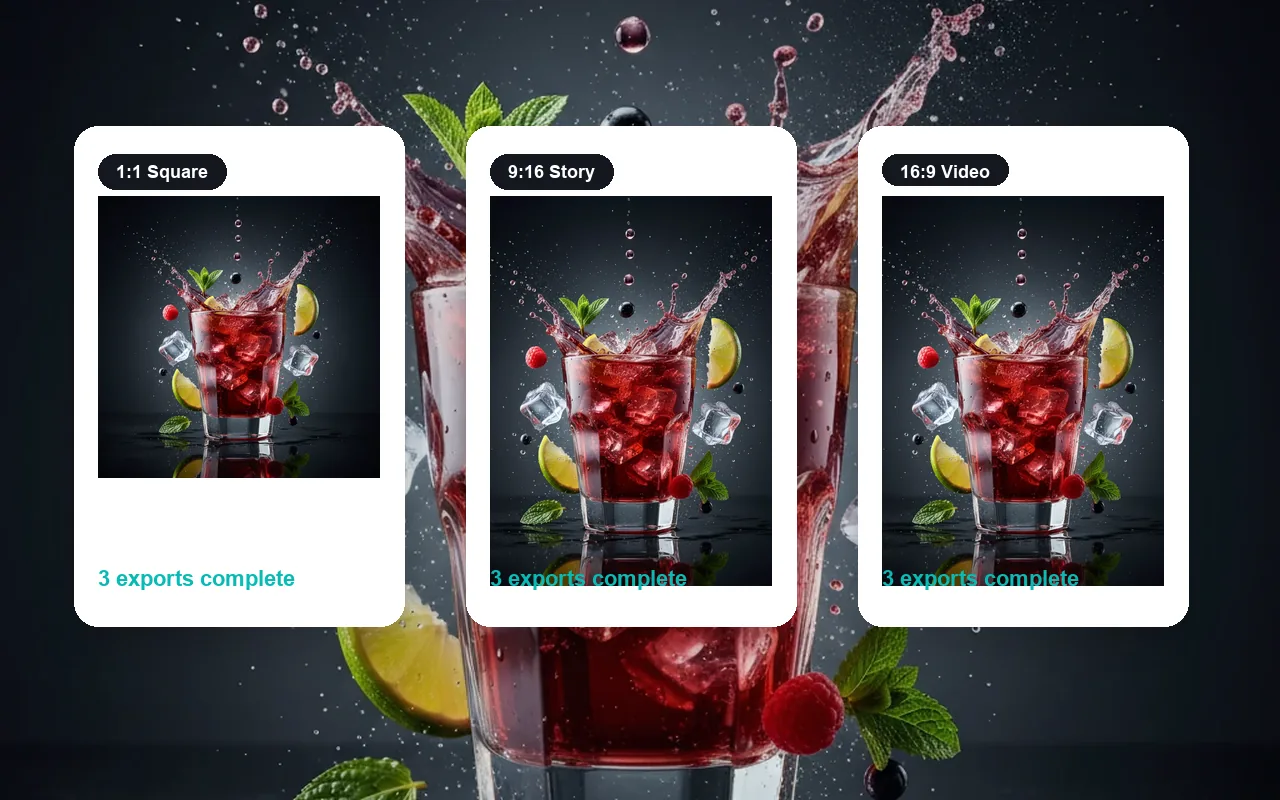
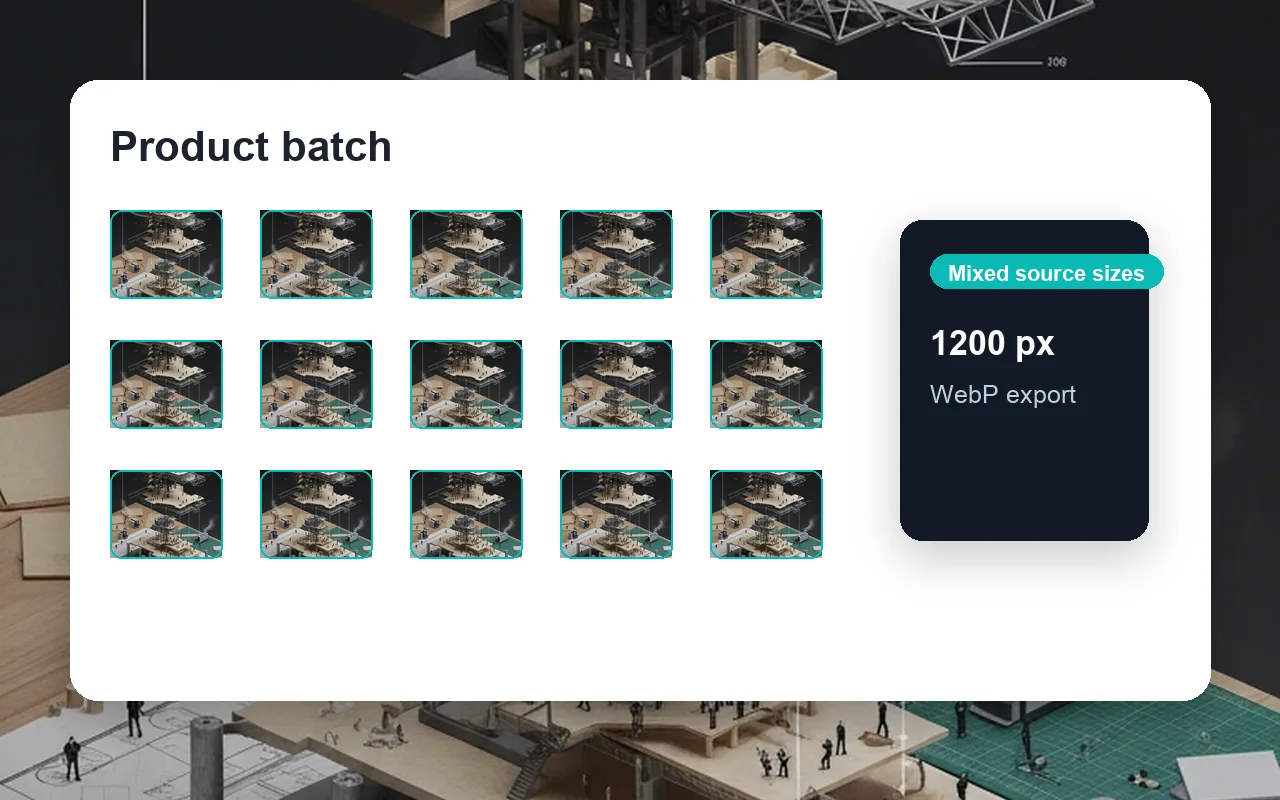
Make all your catalog photos the same size before upload. Works for squares, banners, and store formats.
Resize Image Now
Upload your image, choose the output size, and download. Three steps to a clean resized file.
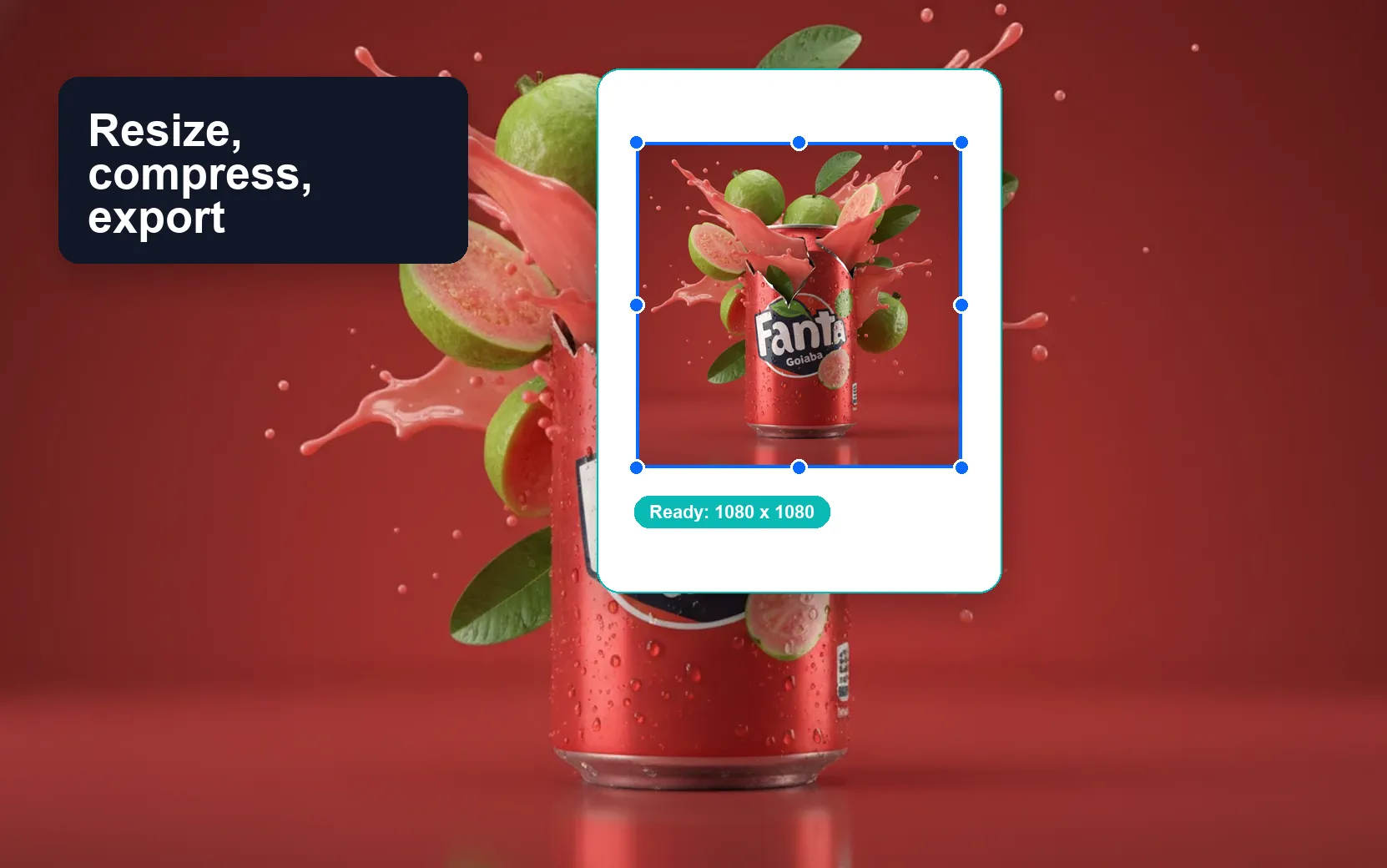
Select a JPG, PNG, or WEBP file from your device. You can also drag, drop, or paste an image.
Use exact pixels, percent, social presets, or target KB mode for JPG and WebP output.
Preview the resized image, verify the file size, then download it for upload or publishing.
Most users resize to meet a platform rule. These are the common jobs this tool is built for.
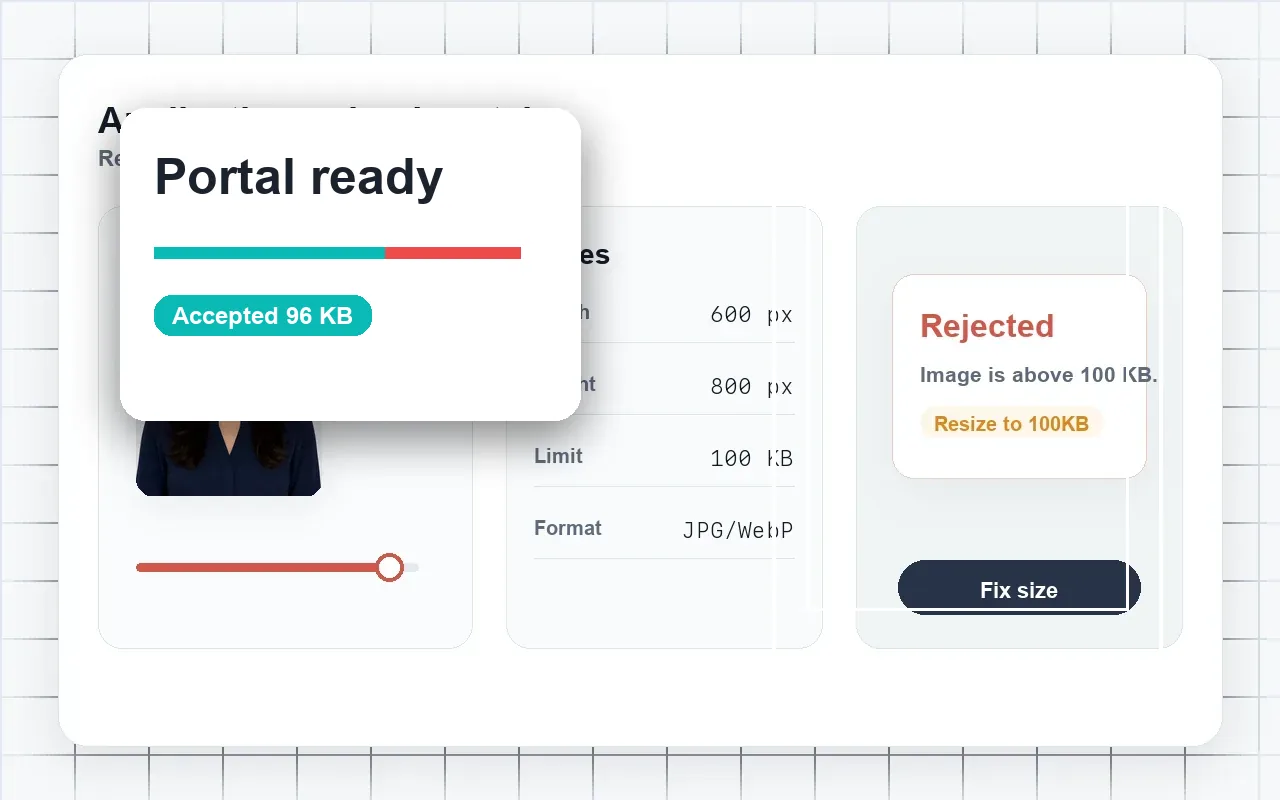
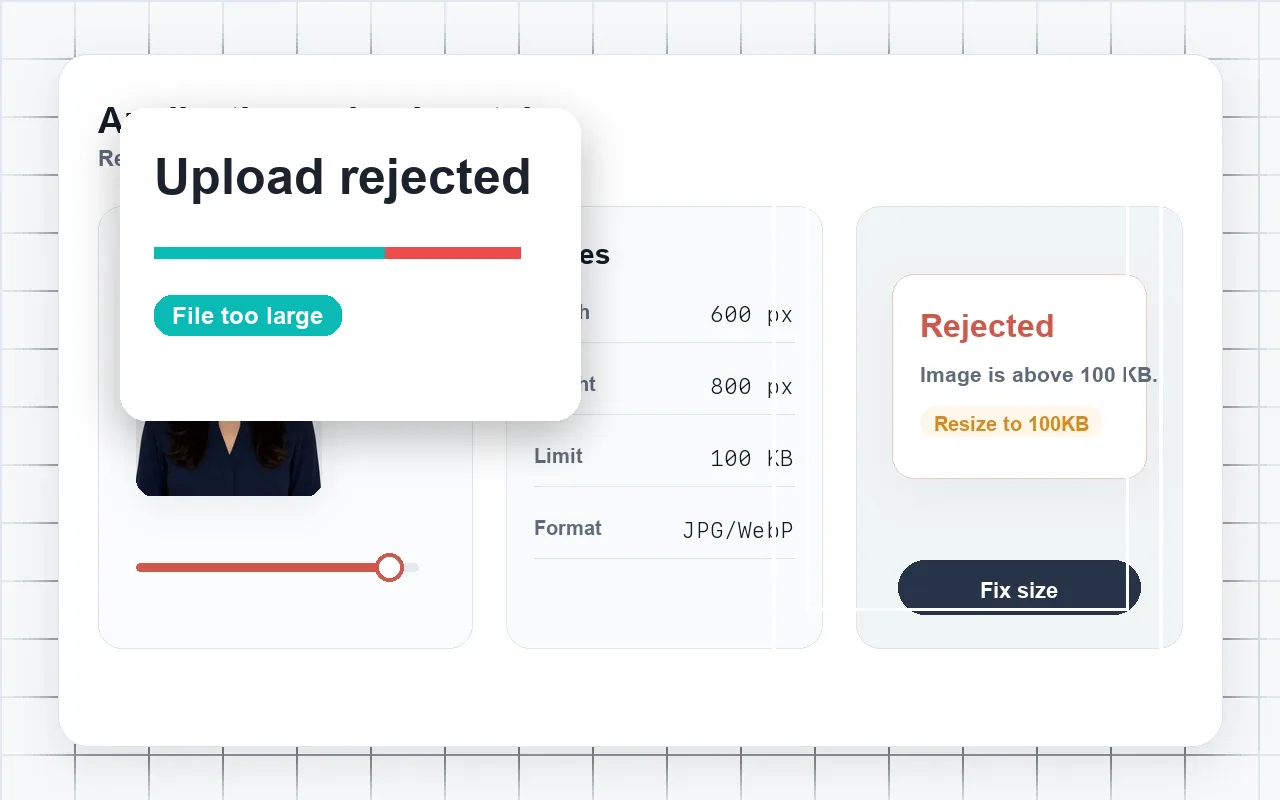
Match strict pixel dimensions and KB limits for visa forms and job applications without quality guessing.
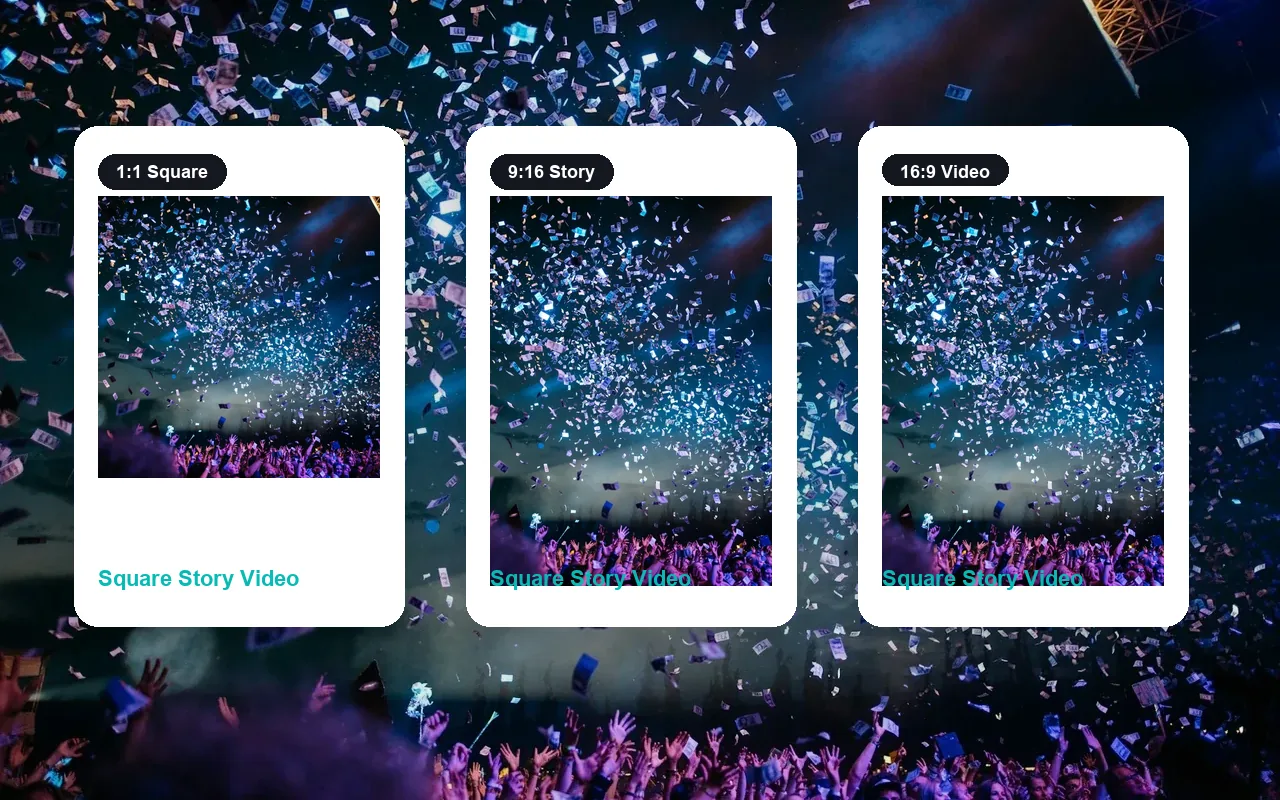
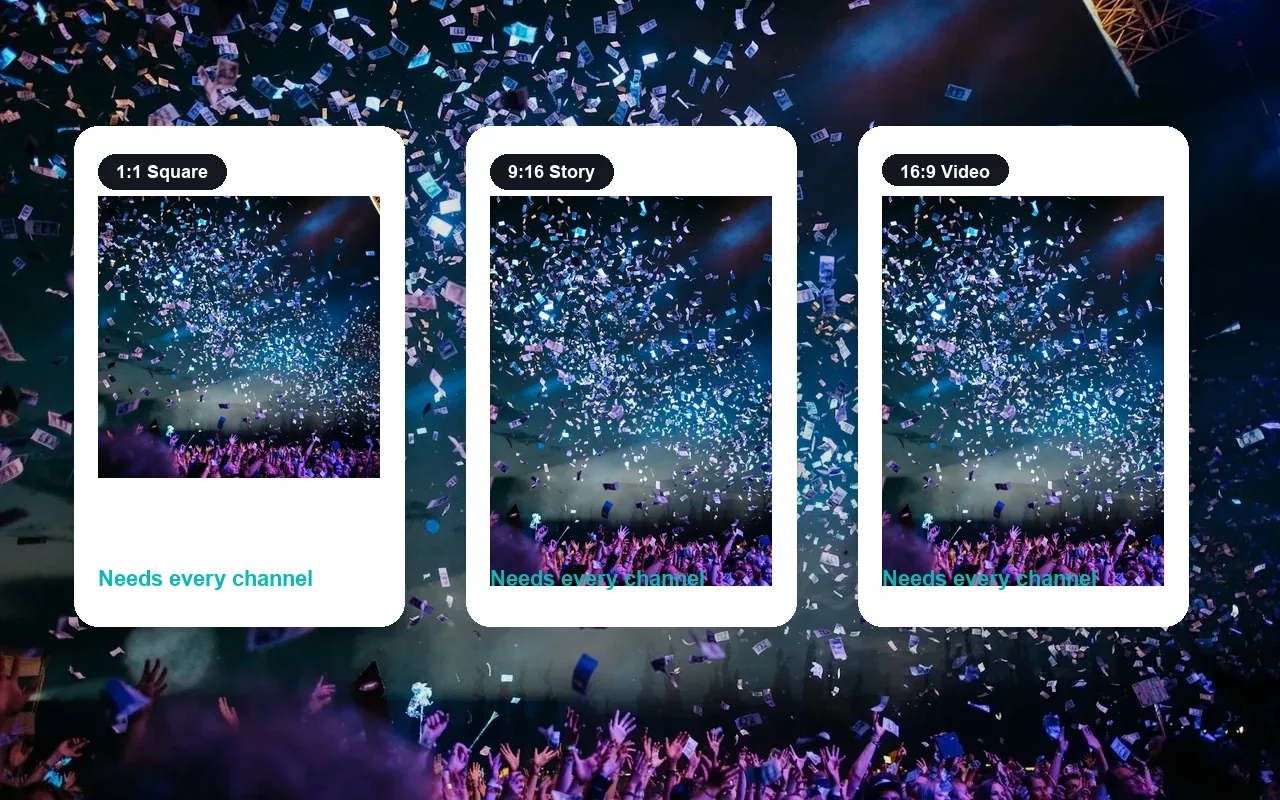
Turn one photo into clean squares, banners, stories, and thumbnails for all your channels.
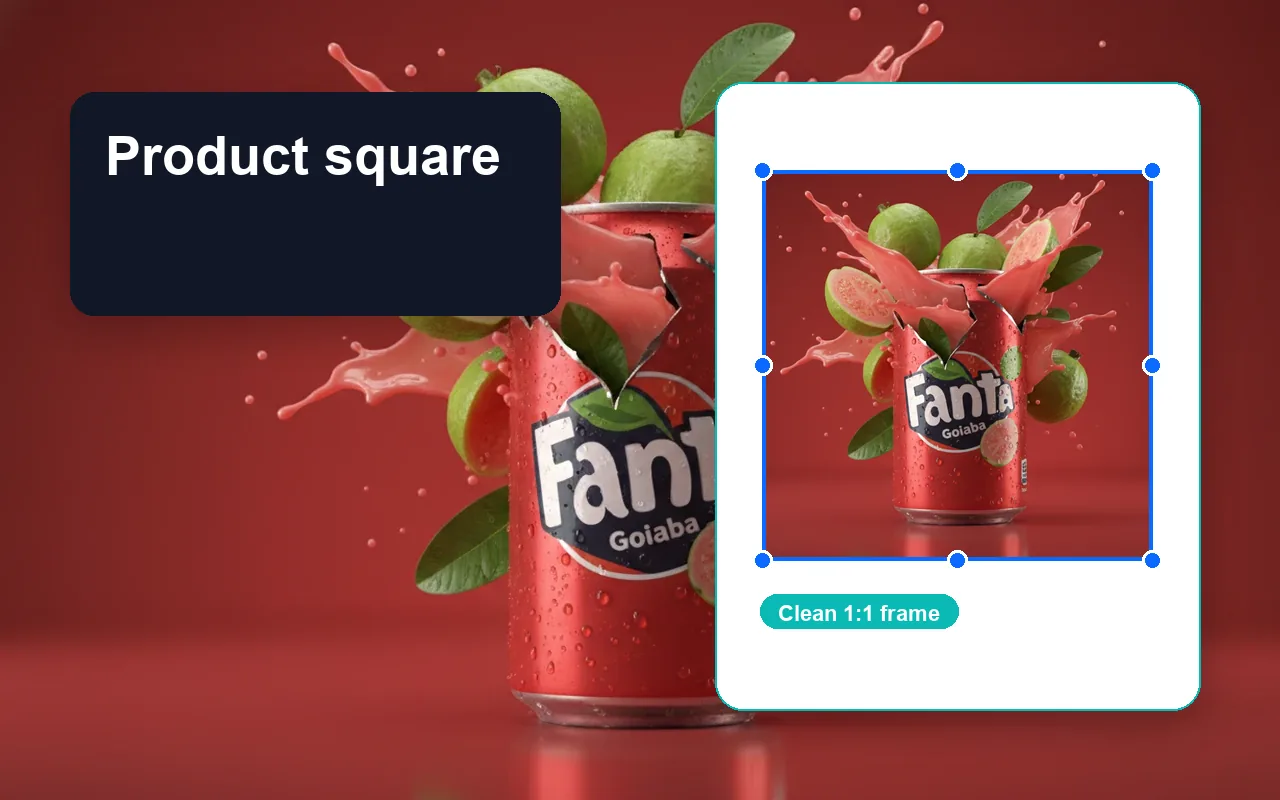
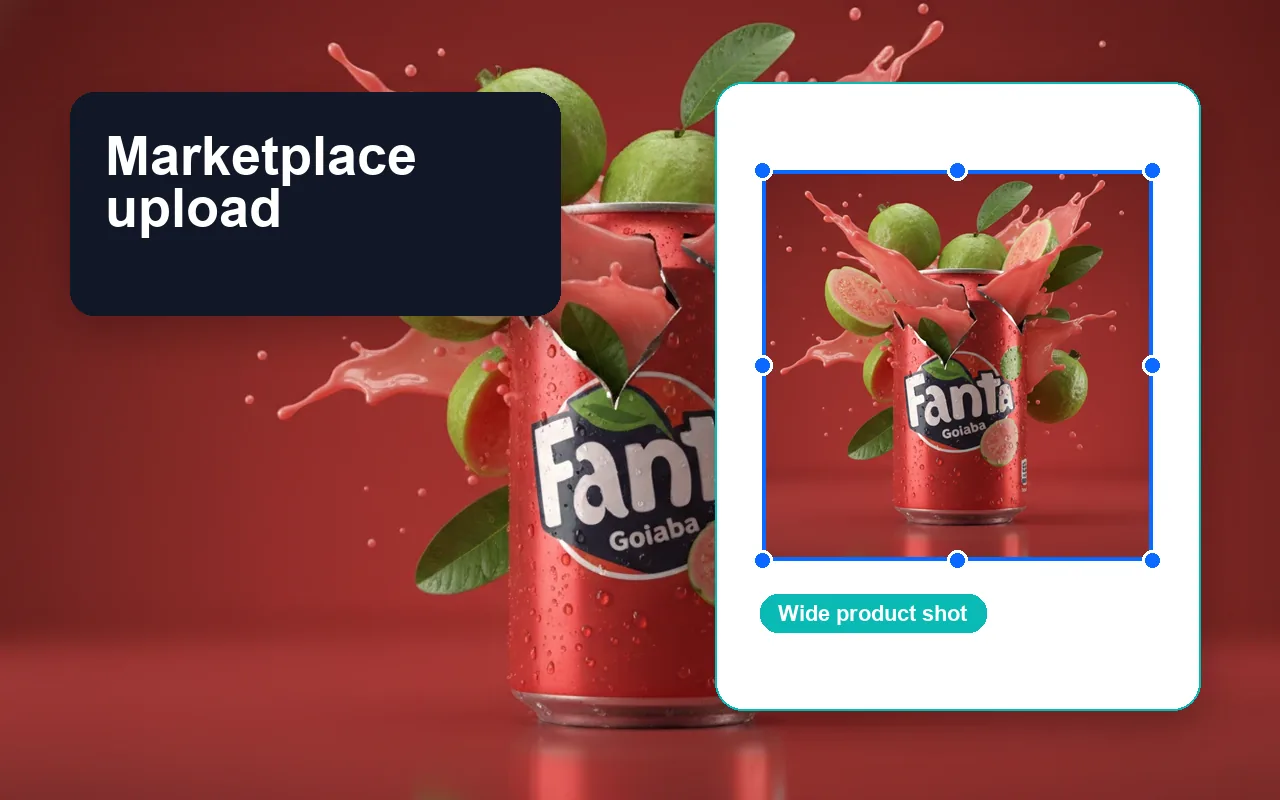
Make all product images the same size before listing them on Shopify, Amazon, or Etsy.
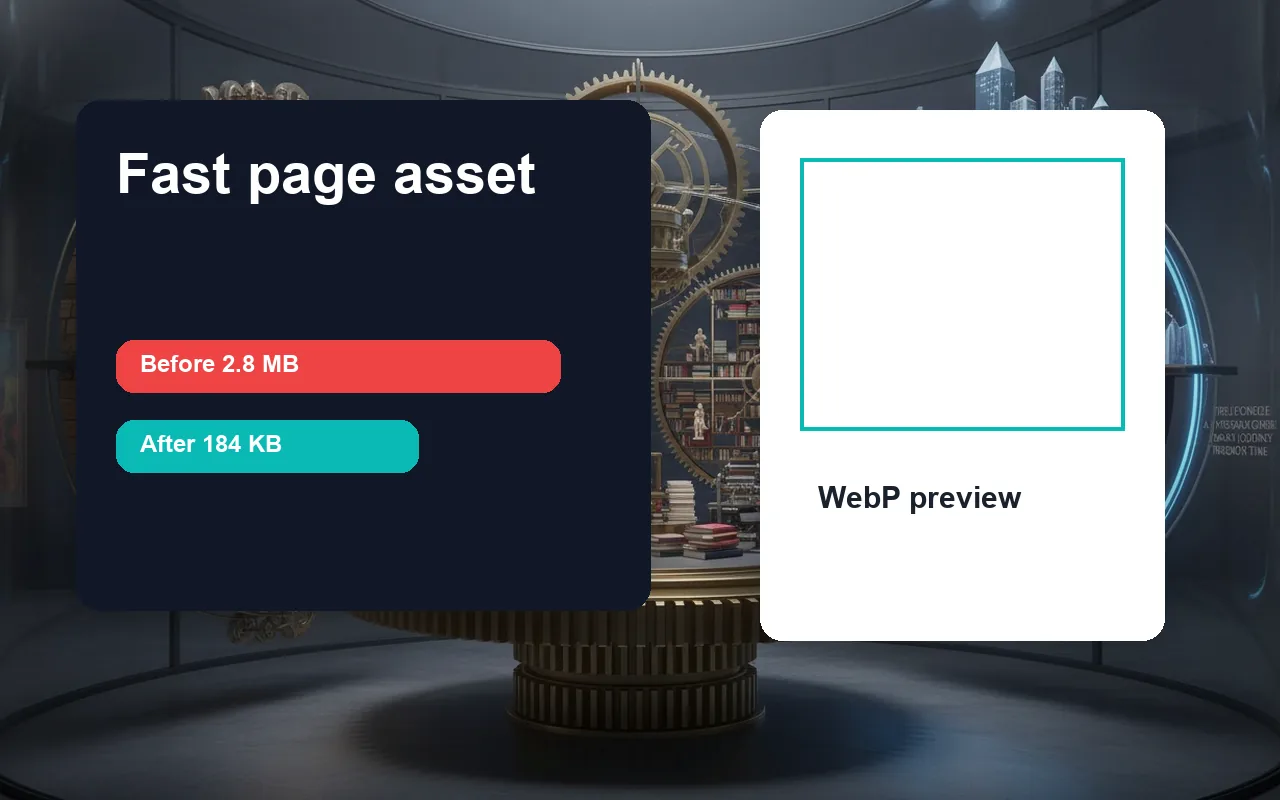
Reduce oversized images before publishing them on web pages, blog posts, or documentation.
Set pixels, hit a KB target, apply presets, or export as WebP. Move to AI tools when your image needs more.
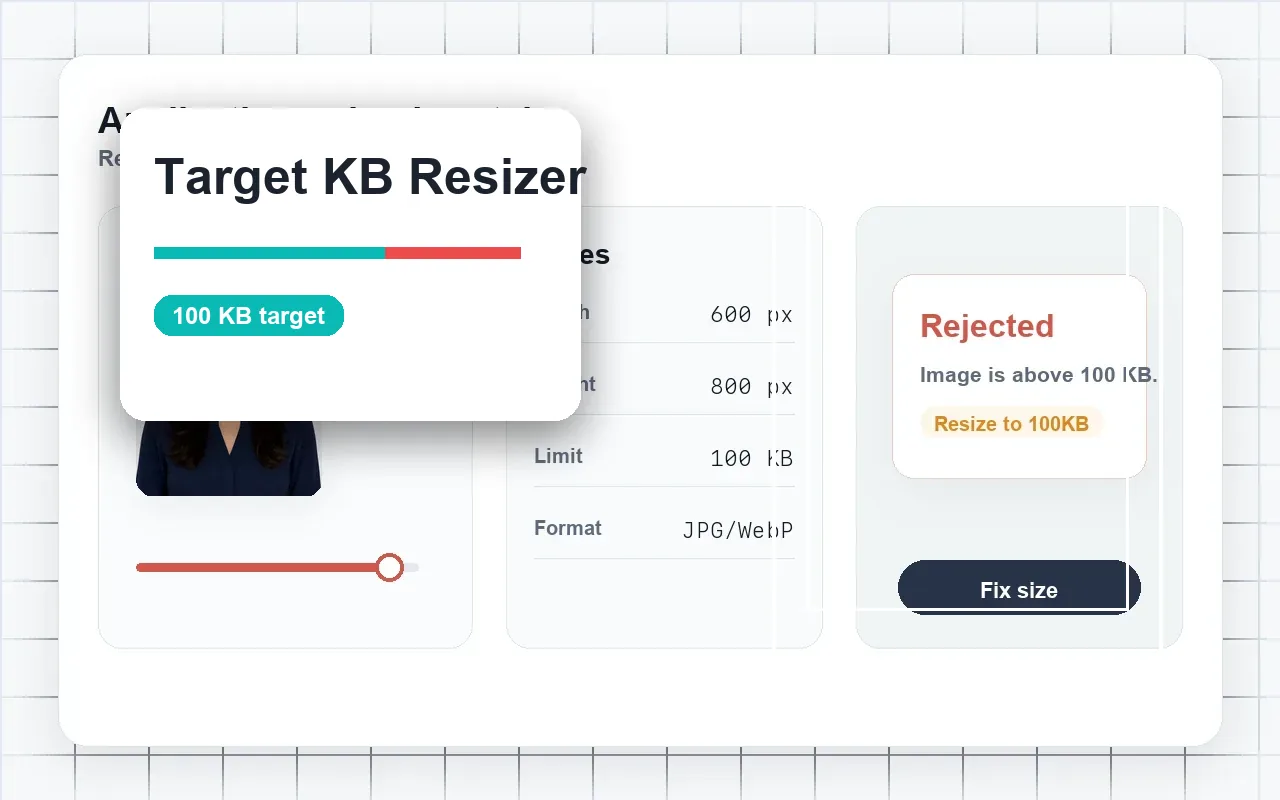
Aim for 20KB, 50KB, 100KB, 200KB, or a custom file size limit.
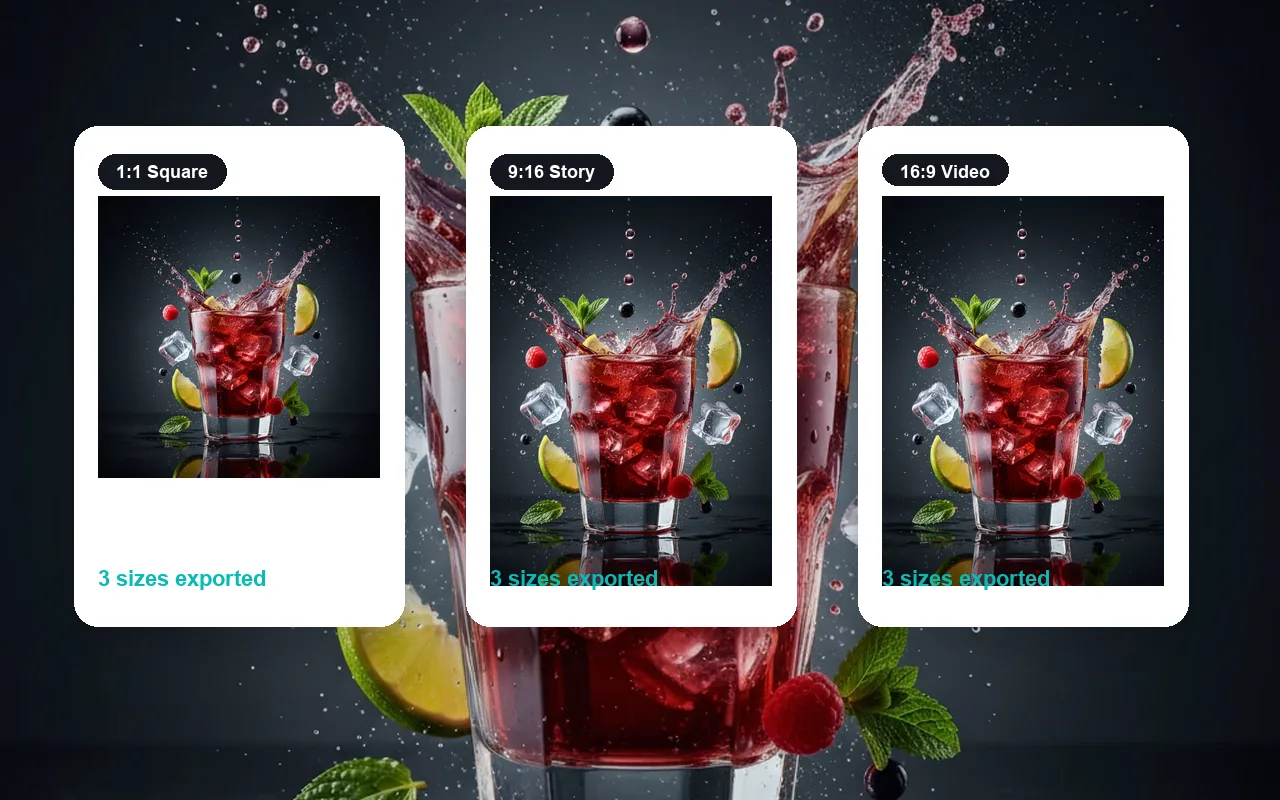
Create squares, banners, and portrait crops for everyday social channels.
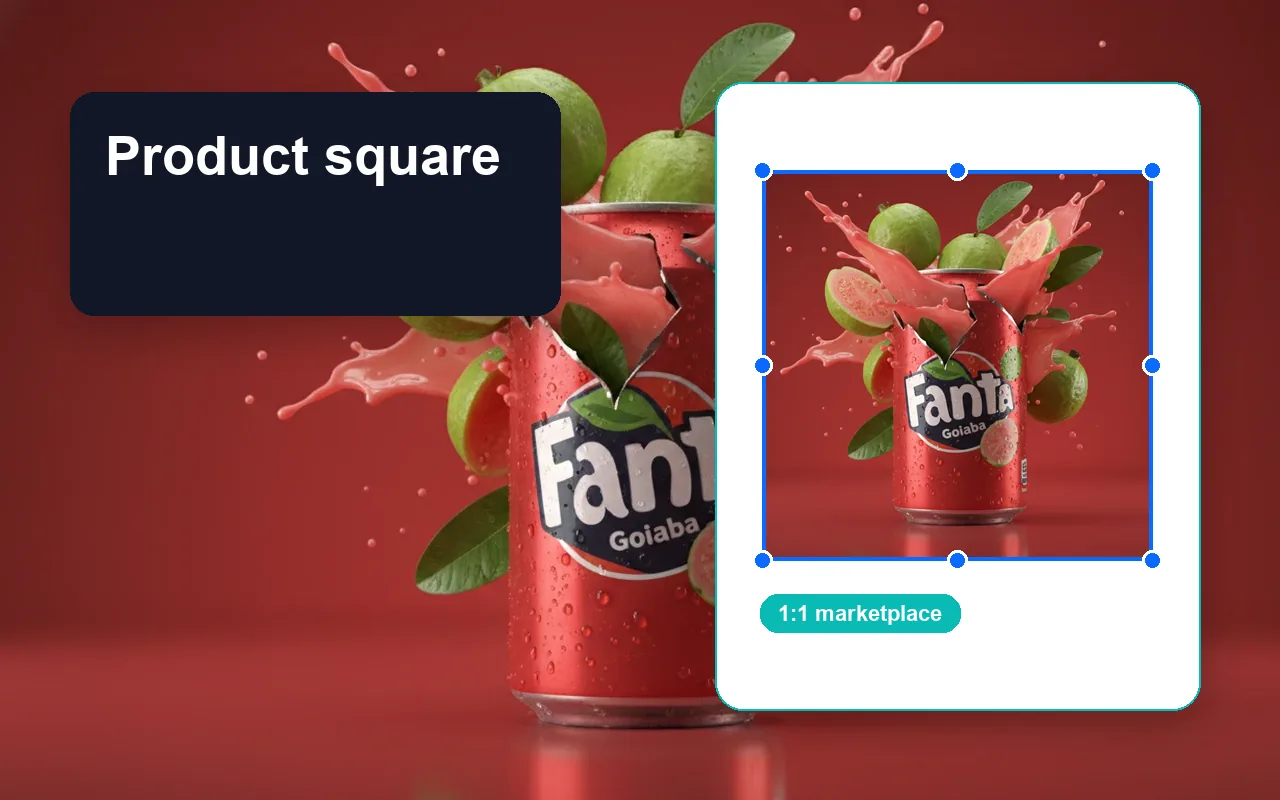
Turn wide catalog shots into clean marketplace squares with even framing.
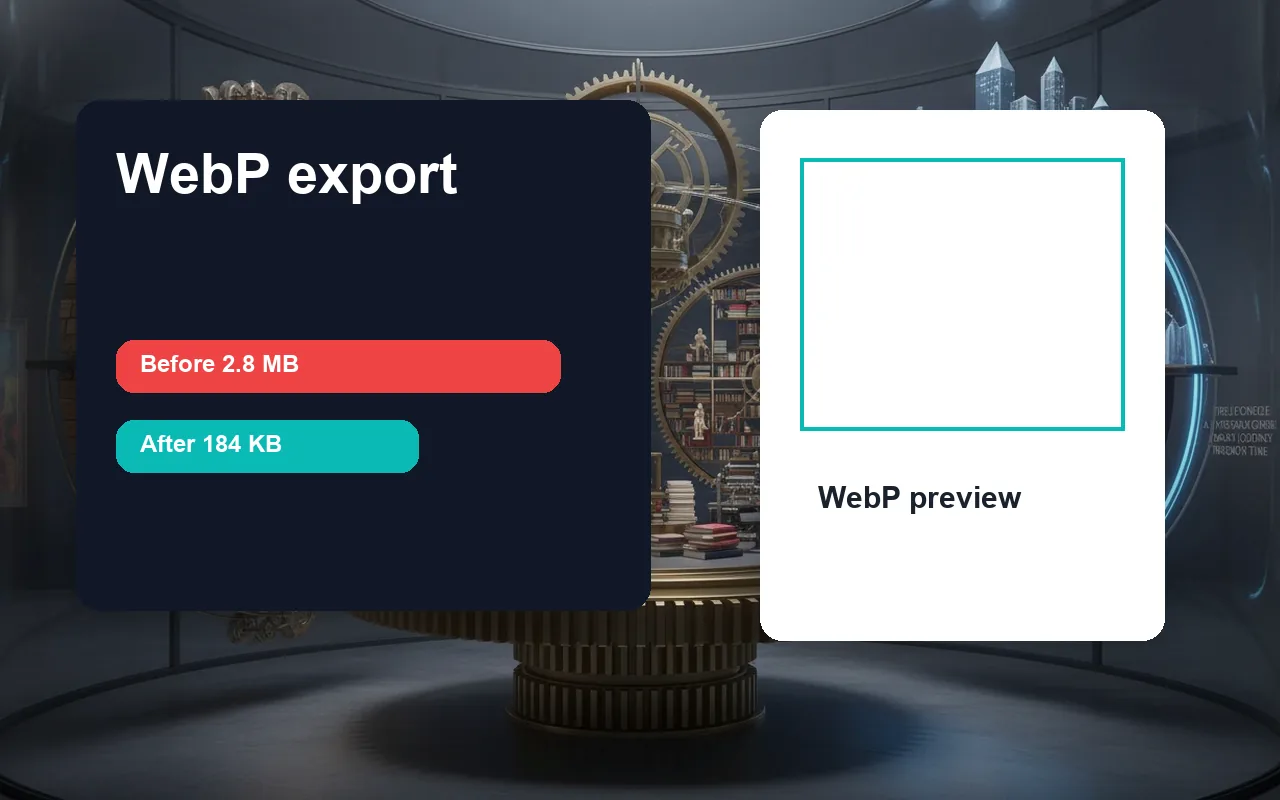
Convert resized files to WebP format for faster page loads.
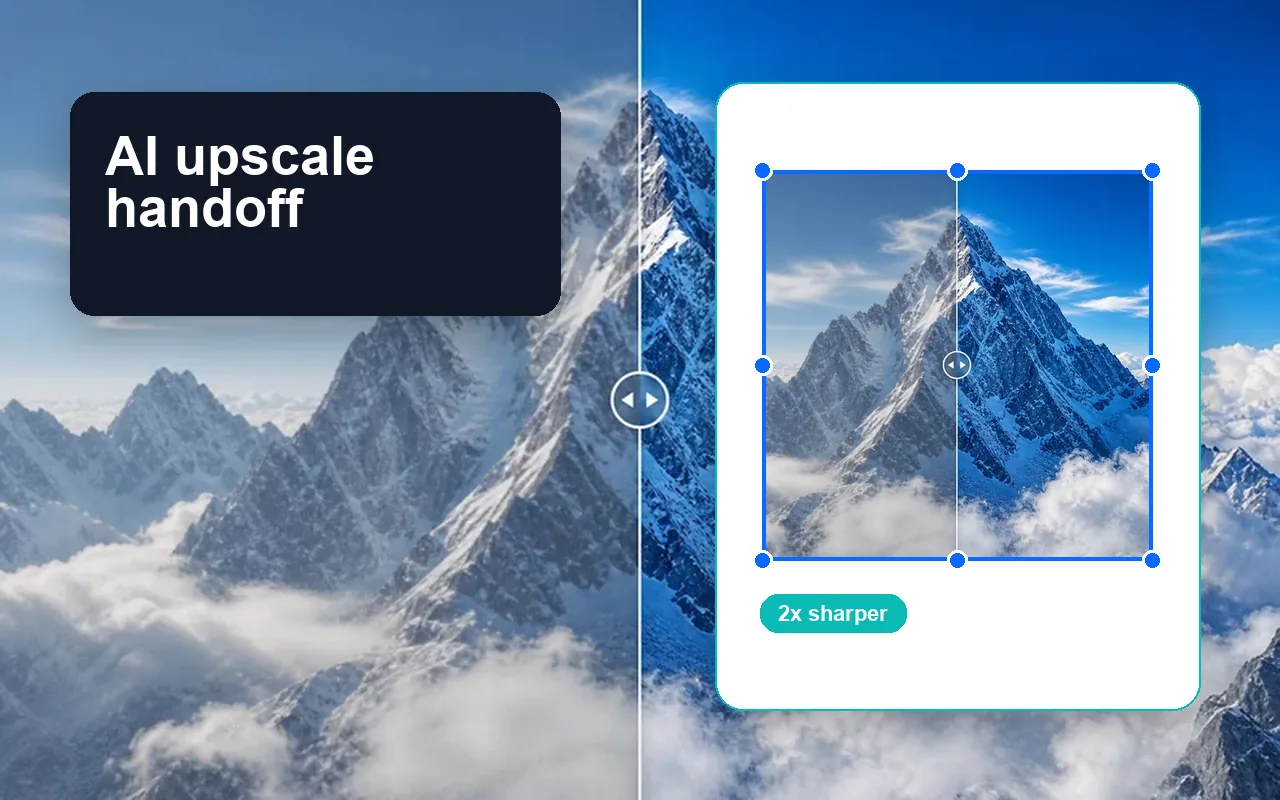
Send small source images to AI enhancement when normal scaling is not enough.
Prepare many catalog or campaign images at once with one repeatable setup.
Simple resize tools first. Connect to AI editing only when the image needs more than size changes.
Standard resize operations happen directly on your device without requiring a slow server upload.
Set pixels, format, quality, and target KB from one clean interface.
Download everyday resized images without adding a site watermark.
Move from basic resizing into AI editing, background removal, or text overlays.
Designed for exact KB targets, exact pixel sizes, and quick approval.
Resize, preview, and download. Use AI tools only when the job requires them.
Exact dimensions, target KB limits, privacy, and no watermark.
The target KB control is exactly what application photos need. No more trial and error.
Nora Wells
Admissions coordinator
I resize product images before uploading batches. The square and banner presets cover most of my work.
David Kim
Shopify operator
Faster than opening a full design tool when I just need a clean 1080 square or 16:9 thumbnail.
Sofia Martin
Social media manager
More tools
Move between the image jobs people usually pair together: editing, backgrounds, resizing, enhancement, and text overlays.
Quick answers about target KB, quality settings, privacy, and export formats.
Upload a JPG, PNG, or WEBP image, set your target width and height, pick an output format, and download. The tool runs in your browser for quick processing.
Yes. Choose JPG or WebP format, then use the target KB controls. You can aim for 20KB, 50KB, 100KB, 200KB, or a custom value. Preview before you save.
Making images smaller usually preserves sharpness. Enlarging a small image can introduce blur. Use AI upscale when you need a larger, sharper result.
Basic resizing is processed on your device when possible. AI tools may upload images for processing and should be treated separately.
The tool accepts JPG, PNG, and WEBP images. You can export as JPG, PNG, or WebP depending on your compression and transparency needs.
Resizing changes the pixel dimensions of an image. Compressing reduces file size through quality or format changes. This tool supports both for JPG and WebP.